How to add variants on Shopify: The complete 2026 guide
Written by Marie Lamonde
September 24th, 2026
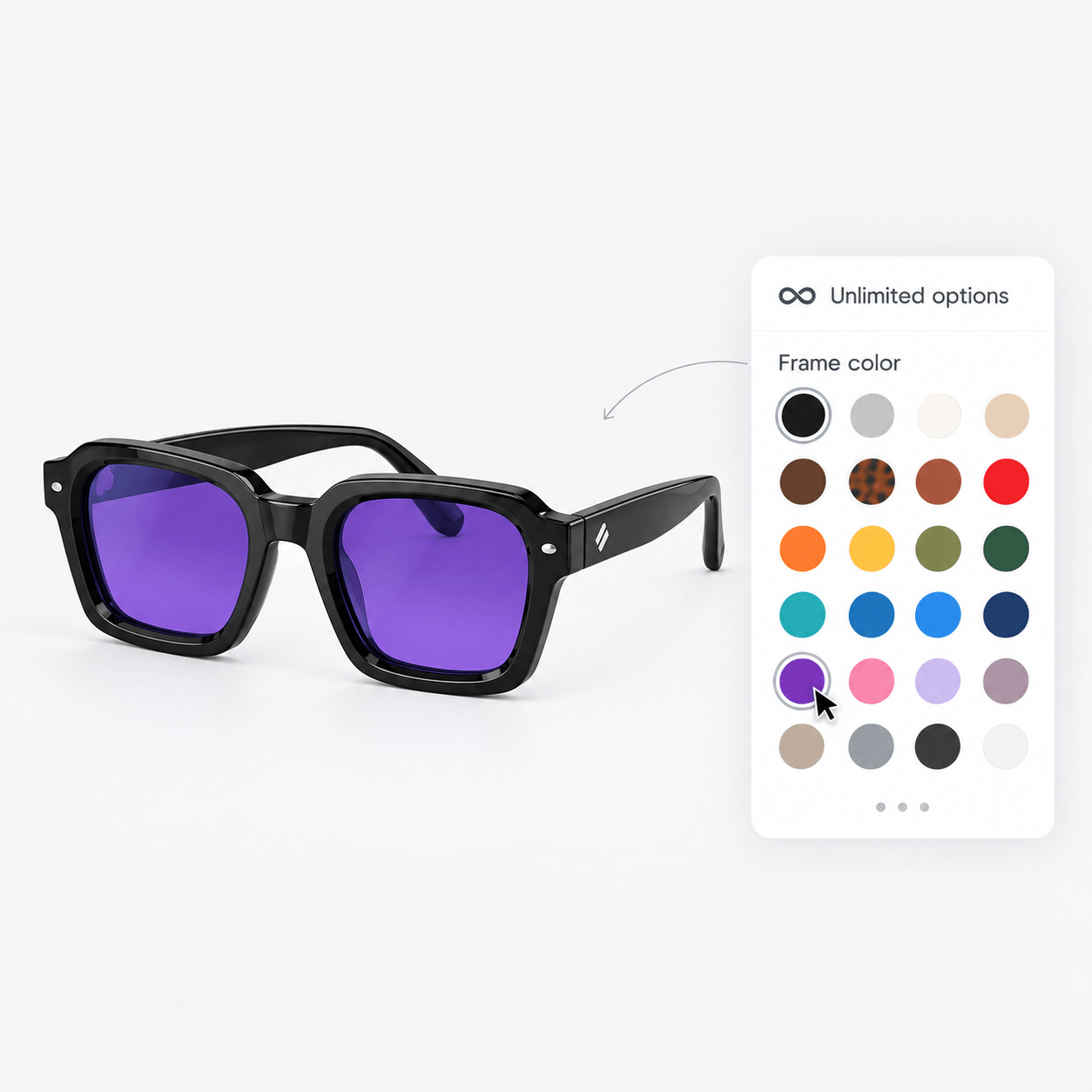
Table Of Contents
Adding product options looks easy on paper.
Doing it in a way that stays scalable, clean, and optimized for sales is where most Shopify merchants hit a wall.
The gap between setting up basic variants and running a system that works at scale is wide. If you sell apparel, jewelry, or custom gear, you will hit Shopify's limits quickly. The workarounds you reach for first usually create more problems than they solve.
In this guide, I'll show you exactly how to add shopify variants using native tools. We will look at where the limits sit, and how to build a setup that helps you increase revenue without the headache.
What are Shopify variants?
The difference between variants and options.
People confuse these terms all the time, which leads to major setup mistakes. This causes inventory mess. Here is the deal: an option is the general category, like Color or Size. A variant is the specific combination of those options, like Red / Large. Each variant functions as a distinct child product in your database, with its own SKU, price, and inventory level.
On your site, options show up as dropdowns, text pills, or swatches. Variants are created in your backend when those choices combine. A product with two colors and three sizes makes six variants. Add a third option with four values, and you are at twenty-four variants.
2.2 Shopify's native limits
Shopify's variant system has its limits. You need to know where these walls are before you build your store.
The 3-option ceiling is a major constraint. Shopify still strictly caps products at a maximum of 3 options, like Size, Color, and Material. You cannot natively add a fourth. If you sell custom bicycles and need to offer frame size, frame color, handlebar type, and saddle material, you cannot do it natively. Four options require a complex workaround.
The 2,048-variant cap is the modern boundary. As of October 15, 2025, Shopify officially increased the product variant limit from 100 to 2,048 variants per product for all merchants using GraphQL-compatible themes and APIs. This is a massive jump, and it helps stores with large option lists.
The theme rendering wall is the bottleneck most merchants do not see coming. Even if your backend holds thousands of combinations, Liquid templates and standard storefront themes still cap the rendering loop at 250 variants for performance reasons. If you go over this, your product pages will fail to load properly without custom API queries or deferred loading. That means expensive development work, not just simple admin settings.
Shopify Limit | |
Maximum options per product | 3 |
Maximum variants per product (GraphQL) | 2,048 |
Liquid theme rendering cap | 250 variants |
2.3 Why these limits exist: And what they cost you
Shopify uses these limits to keep page speeds fast. A product with thousands of variant combinations requires massive database queries. These caps stop heavy pages from slowing down your site. Speed keeps shoppers buying.
If you sell standard t-shirts, you will never notice these limits. But if you sell configurable goods like custom shoes or modular furniture, the three-option limit is a massive roadblock. Trying to force complex products into standard variants leads to messy inventories, broken layouts, and confused customers. Managing thousands of individual variant rows in a flat table is a slow, error-prone process that drains your time.
Step-by-step: How to add variants on Shopify
Learning how to add variants on Shopify the right way saves you from massive headaches later. Plan ahead.
Method 1: Adding variants to a new product
Access the Product Creator: From your Shopify admin, go to Products and click Add product. Enter your title, description, and media.
Initialize Variants: Scroll to the Variants section and click + Add options like size or color. Choose a default option name or write a custom one that fits your item.
Input Option Values: Type your option values, like Small, Medium, and Large. Press enter or comma after each value to lock it in.
Add Additional Options: Click Add another option if you have more choices, up to your limit of three. Watch the list build automatically below.
Review and Configure the Variant Matrix: Look at the auto-generated list of variant combinations. Adjust your pricing, add unique SKUs, and set your inventory levels. Never leave your SKUs blank, or your shipping apps will run into errors.
Save: Click Save to write the data to your store. Your product is live.
Method 2: Adding variants to an existing product
Open the Product: Go to Products in your admin dashboard and click on the active product you want to change.
Add a New Option Category: Scroll to the Variants section. If you want to add a brand new category, like Material, click Add option, enter your values, and save.
Add a Single New Variant Combination: If you only need to add a single new combination, like Large / Blue, click Add variant instead. Fill out the fields for that single SKU and click Save.
Watch for Duplicates: Make sure you do not create duplicate combinations. Shopify will block the save action and show an error message. This slows you down.
Configuring prices, SKUs, and inventory
SKU organization is critical. Use a clear naming convention from day one, like JACKET-BLK-LG or RING-GOLD-7MM. This ensures your fulfillment center and shipping apps process orders without manual errors.
Set variant-specific pricing to protect your margins. If your premium materials cost more to make, adjust those individual prices in the variant matrix. Customers expect to pay a premium for personalized products, and clear pricing builds trust.
For inventory, check the Track quantity box for each variant and enter your current stock levels. This prevents overselling, which is incredibly messy to fix later.
Managing and editing variants
Assigning images to variants
Customers expect the main image to change instantly when they select a specific variant color or style. To do this natively, go to the Variants section. Click the image icon next to each variant SKU and upload your photo. Keep images high quality.
Here is the catch: Shopify only lets you assign a single image to each variant. If you want to show multiple angles of a selected style, you will need a custom theme or a specialized app.
Using the bulk editor for fast updates
Select the checkboxes next to the variants you want to modify. Click Bulk edit from the floating menu bar. This opens a spreadsheet-like workspace where you can add columns for Price, SKU, Weight, or stock counts.
Click and drag to copy values across multiple cells. It saves hours. This is a fast way to update prices or inventory counts in seconds.
A quick warning: the bulk editor does not check your SKU format. Keep your naming clean to avoid downstream fulfillment issues.
Storefront UX: Pills vs. dropdowns
Standard dropdown menus hide your options. Customers have to click multiple times just to see what is available. That extra friction hurts your conversion rate.
Text pills and color swatches show all available options at a single glance. This reduces friction and speeds up the purchase decision. For shopify variants, swatches are the right call, but only if they match the physical product perfectly. Inaccurate swatches lead to high return rates.
Most modern Online Store 2.0 themes let you switch between dropdowns and swatches inside the Theme Customizer under the Product Information block. If your theme does not support this, test any custom code on mobile before you publish.
Overcoming Shopify's variant limits
Where merchants hit the wall
You will hit the three-option limit almost immediately if you sell customizable goods. A custom shoe brand cannot offer Size, Width, Color, Sole Type, and Lace Style natively. A modular furniture brand cannot fit its choices into three options either. The math does not work.
While the 2,048-variant limit is a massive step forward, it does not solve the option-count problem. You can have thousands of combinations but still be stuck at three options. If your products require variety rather than just volume, the update changes very little.
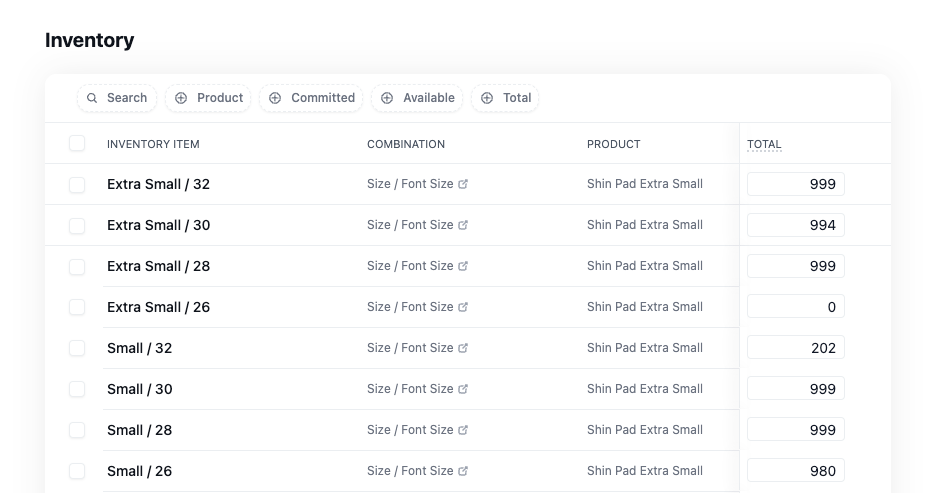
Then there is the administrative nightmare. Managing thousands of individual variant SKUs in a flat table within the Shopify admin is incredibly time-consuming and prone to human error.
Native workarounds: And their trade-offs
Shopify's Combined Listings App links separate products into a single product page. However, it is strictly restricted to Shopify Plus and Enterprise plans, leaving smaller brands in the cold.
Splitting products with canonical tags is another route. Splitting variants into separate product pages and using canonical tags pointing to a parent URL prevents search engines from indexing duplicate pages. While great for SEO, this fragments your inventory and complicates collection-page navigation. It hurts user experience.
Custom Liquid Code can capture inputs like text engravings using line item properties. While these custom options can solve some issues, this code is expensive to build, breaks during theme updates, and offers zero visual feedback to the buyer.
Bypassing the limits with Kickflip
A Shopify product configurator like Kickflip removes these limits. Instead of generating variant SKUs for every single combination, Kickflip builds an interactive customization layer on top of your product page. It captures customer choices as clean order data without touching your variant table. This keeps database queries light.
Here is the deal: a product configurator like Kickflip lets you bypass the limits entirely. You can offer unlimited customization options and millions of combinations without creating a single extra SKU in your Shopify admin. Your items become fully customizable in a quick setup time, without months of coding.
Your customers get a premium experience, and you see a higher order value because people pay more for personalized products.
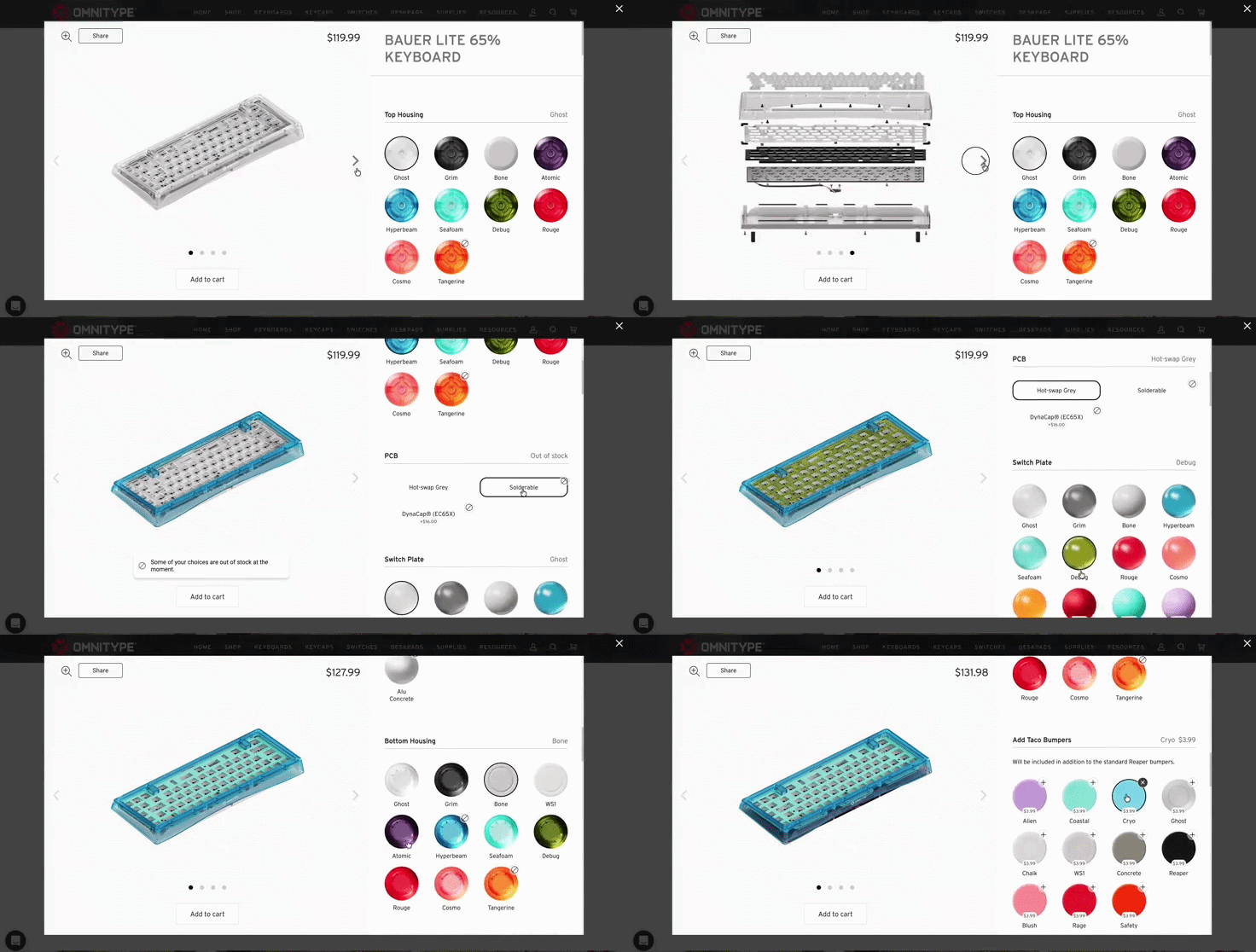
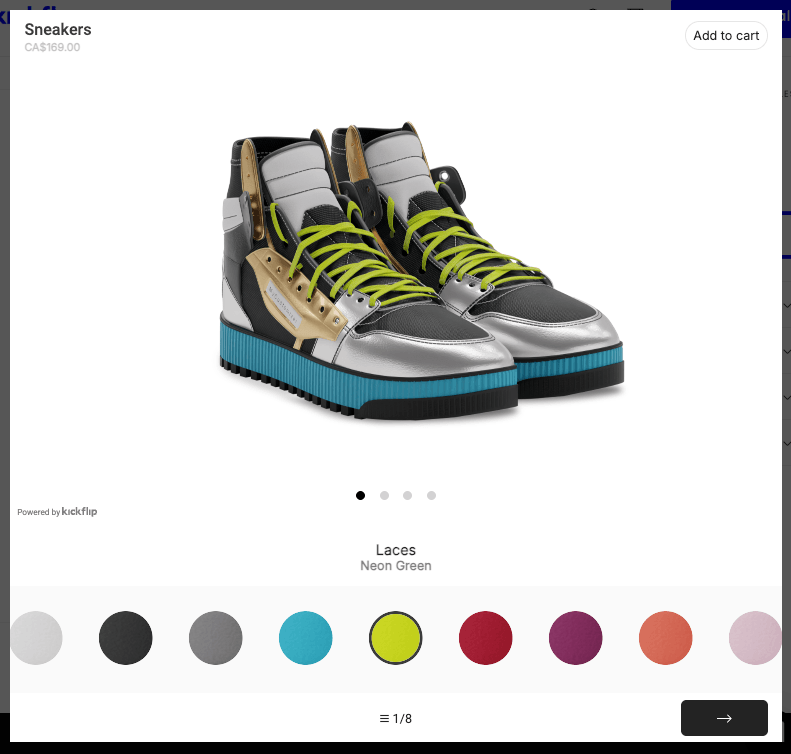
Real-time visual previews are where you see the conversion impact. Instead of guessing from flat dropdowns, customers see their selections update instantly on a high-fidelity 2D or 3D model. This visual validation builds confidence, reduces purchase hesitation, and cuts return rates.
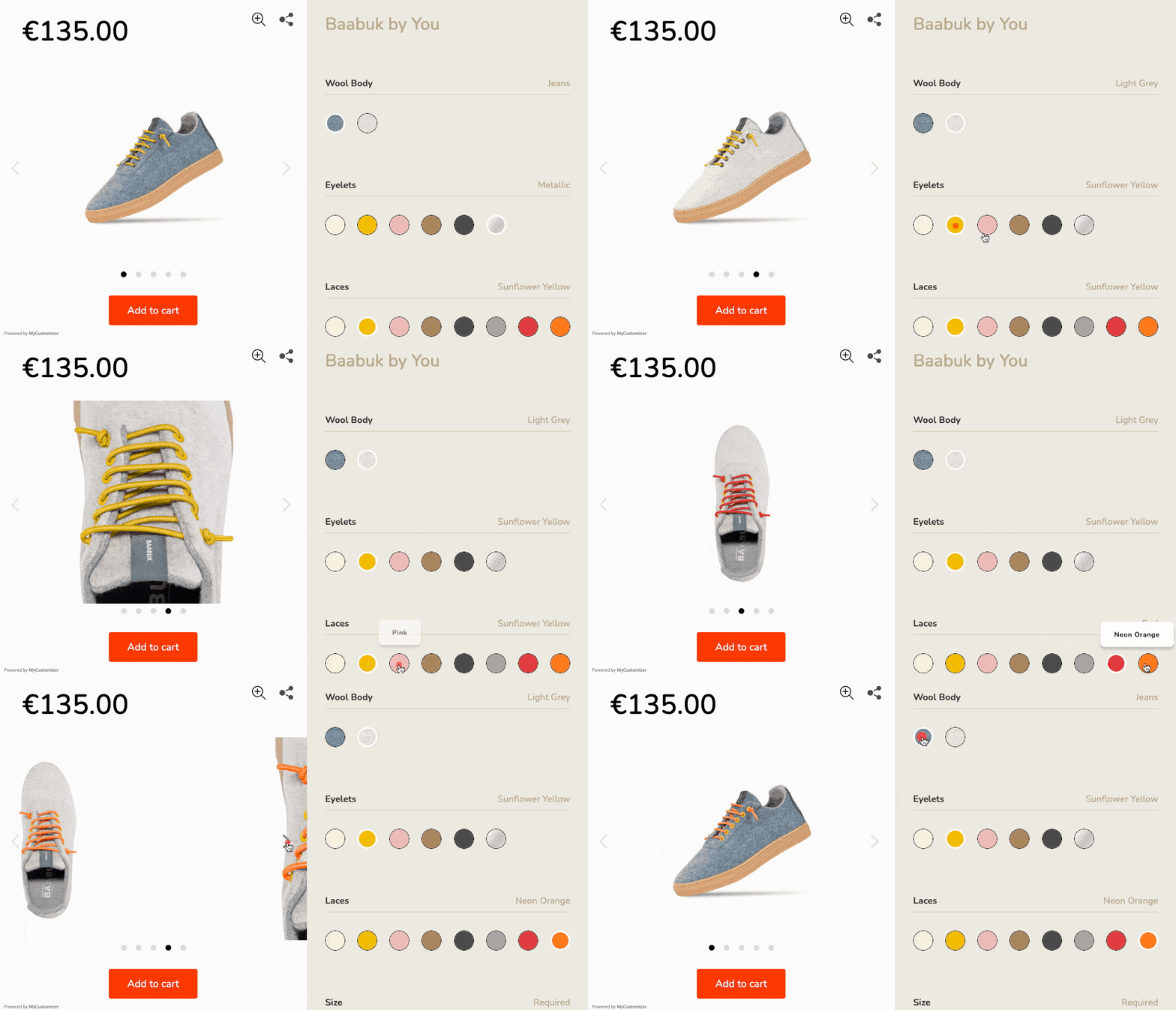 Dynamic pricing works at the option level. You can assign custom pricing to individual options, like +$15 for premium leather. The total price updates dynamically on the screen as the customer builds their product.
 Order and inventory sync provides a smooth customer journey. Kickflip converts custom configurations into standard Shopify orders using line item properties. It maps components to specific Shopify inventory items to keep your stock levels perfectly accurate.
Best practices for Shopify product variants
Technical SEO for variant pages
When a customer selects a variant, Shopify appends a parameter to the URL, like /products/t-shirt?variant=123456. Left unmanaged, search engines can index these as separate pages, creating duplicate content. This hurts search rankings. Ensure your theme's canonical tag points back to the clean base URL (/products/t-shirt) to prevent search engines from indexing duplicate pages.
If a specific variant has high search volume, like black leather motorcycle jacket versus red leather motorcycle jacket, create them as separate Shopify products. This allows you to write unique meta titles, descriptions, and on-page content tailored to those specific search terms.
Make sure your product schema includes the offers array, which nests all variant prices, availability, and SKUs under a single product entity. This helps Google display accurate rich snippets in search results.
UX and conversion rate optimization
Avoid overwhelming customers with too many choices at once. Use progressive disclosure, showing basic options first, then revealing advanced customizations as they proceed. A customer choosing a sofa configuration does not need to see fabric options until they have picked their basic layout.
 Highlight out-of-stock variants clearly. Cross out or grey out unavailable variant combinations immediately so customers do not spend time configuring a product they cannot buy.
Ensure your color swatches accurately match the physical product. Color accuracy builds trust. Low-quality or inaccurate swatches lead to customer frustration and high return rates.
All of these are features natively embedded into Kickflip. The configurator is set up to show options progressively, cross out out-of-stock options, and give you logic to block incompatible combinations. The color visualization looks life-like, and you can choose colors that best match your products.
Inventory and fulfillment best practices
Automate stock syncing across sales channels from the start to prevent overselling popular variants. Do not wait for your first oversell incident to fix this. Overselling kills customer trust.
Set up low-stock alerts for your top-selling variants so you can reorder from your manufacturer before you run completely out of stock.
Audit your SKUs regularly. Clean up inactive or discontinued variants from your Shopify admin to keep your database fast, organized, and easy to manage.
FAQ
Can I have more than 3 options on Shopify? Natively, no. Shopify strictly limits products to 3 options. To add more, you must use a third-party app or a visual product configurator like Kickflip.
What is the difference between "options" and "variants"? Options are the general categories, like Size or Color. Variants are the specific combinations of those options, like Small / Blue, that have their own SKU and price.
How do I bulk edit variants on Shopify? Select the products or variants in your Shopify admin, click Bulk edit, and use the spreadsheet-like interface to quickly update prices, SKUs, and inventory.
Can I split variants into separate products in Shopify? Yes, by duplicating the product and deleting the unwanted variants from each copy, or by using a dedicated product-splitting app.
Does exceeding the 250-variant theme limit slow down my site? Yes, loading more than 250 variants at once can cause lag on your product pages. Modern themes use deferred loading or custom API queries to maintain fast page speeds. Using a product configurator like Kickflip will bypass this limitation.
Conclusion
Adding basic variants on Shopify is a straightforward process, but scaling your store requires navigating hard platform limits like the 3-option bottleneck and theme rendering caps.
While native workarounds exist, they often lead to administrative headaches and fragmented customer experiences. These workarounds fall short.
If you want to offer a truly premium experience for your customers and increase revenue, it's time to move beyond standard dropdowns. A product configurator like Kickflip can upgrade your store.
Get started with Kickflip today to build a smooth, unlimited customization experience.
Future reading
How to add custom product options & variants on Shopify
5 Ways to Bypass Shopify 100 Variant Limit (Easiest > Difficult)
The Best Product Customizers for Shopify
Share This article

Written by Marie Lamonde
September 24th, 2026
Marie Lamonde is a Content Marketing Manager at Kickflip with 8 years of experience writing about digital marketing, SaaS, and ecommerce. She specializes in creating clear, search-driven content that attracts, engages, and converts.


Maarten Luyckx
Osaka World
The user-friendly interface of Kickflip, combined with excellent customer service, ensured that this project was brought to a successful and beautiful conclusion.
Shopify App Store
May 20, 2021

Marie-Laetitia Rossazza
My Dust Bag
It took me a long time to find the perfect customizer app, and I’m so happy to say that I finally did! Kickflip is truly the best app on the market. The front end and back end are excellent, and the team behind it is incredibly kind and helpful!
Shopify App Store
September 1, 2023

Brad Jurga
All-Star Sporting Goods
Kickflip made everything easy, from designing the builder all the way through launch. We’re designing truly custom equipment for elite baseball players and this platform allows us to have better engagement and excitement around our brand. We’re seeing an instant return.
Shopify App Store
June 16, 2025

Kasper Taylor
CodedInk
My experience with both the product and the support team has been fantastic. The user interface and user experience are excellent. The features are powerful, and the WooCommerce integration is seamless and easy to set up.
G2.com
June 16, 2025

Saber Naceur
Vinylacy
By far, and I truly mean it, the best customizer available on Shopify. It’s easy to understand and manage, offers options for all types of products, and works extremely well. On top of that, it looks beautiful and feels premium. Highly recommended.
Shopify App Store
December 17, 2022

Jesus Guillermo de León Pérez
Dismo
Kickflip is a fantastic tool. It’s super intuitive, easy to use, and packed with capabilities. You don’t have to be an expert or have experience with other products to get started. The support team is also great and very responsive.
Shopify App Store
July 10, 2024

Frieder Urban
Era of Arc
We were looking for an uncomplicated configurator that was quick and easy to set up, offered plenty of design options, and worked reliably with fast loading times. We tested many configurators on the market, and with Kickflip, we found exactly what we needed.
Shopify App Store
October 10, 2024

John Taggart
Jack Harry and Ollie
What a great addition to our business Kickflip has been. It’s been fantastic to offer our customers the ability to personalize their orders. The support has been excellent, and we especially love that the pricing is tied to our success as customers make purchases.
Shopify App Store
May 7, 2021

TJ Garske
The Net Return
Kickflip saves our team a ton of time by eliminating the need to create custom mockups for customers. Customers can build their product themselves and place an order instantly, without any back-and-forth.
G2.com
January 26, 2026

Amin Hasani
CURVD
After extensive research into product customizer tools, we chose Kickflip for many reasons. We don’t like complicating simple tasks for customers, and Kickflip helped us simplify the process and create a seamless customer experience.
Shopify App Store
July 29, 2025